Available now on the App Store for iPhone and iPad.
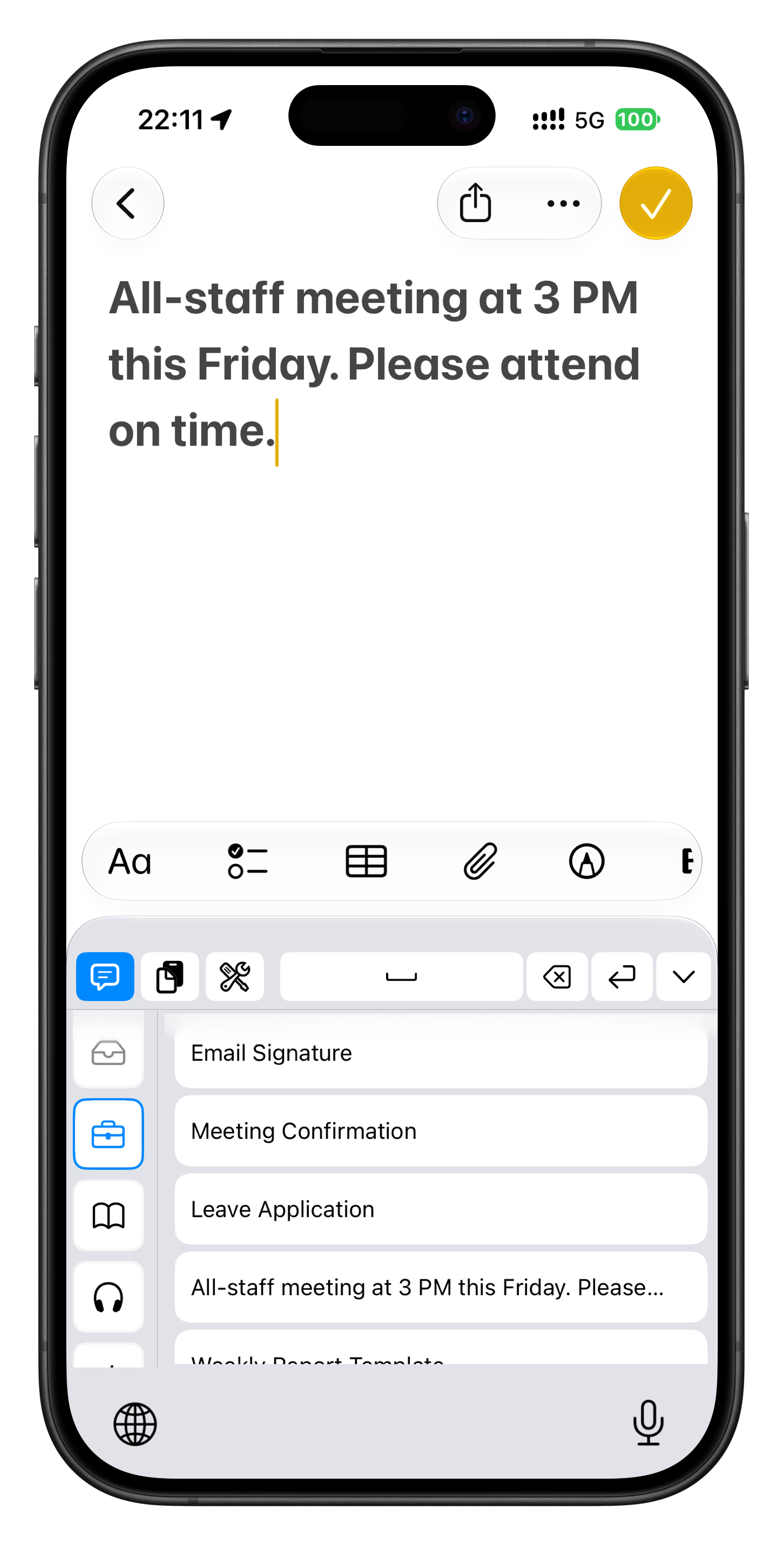
AaQuick phrases
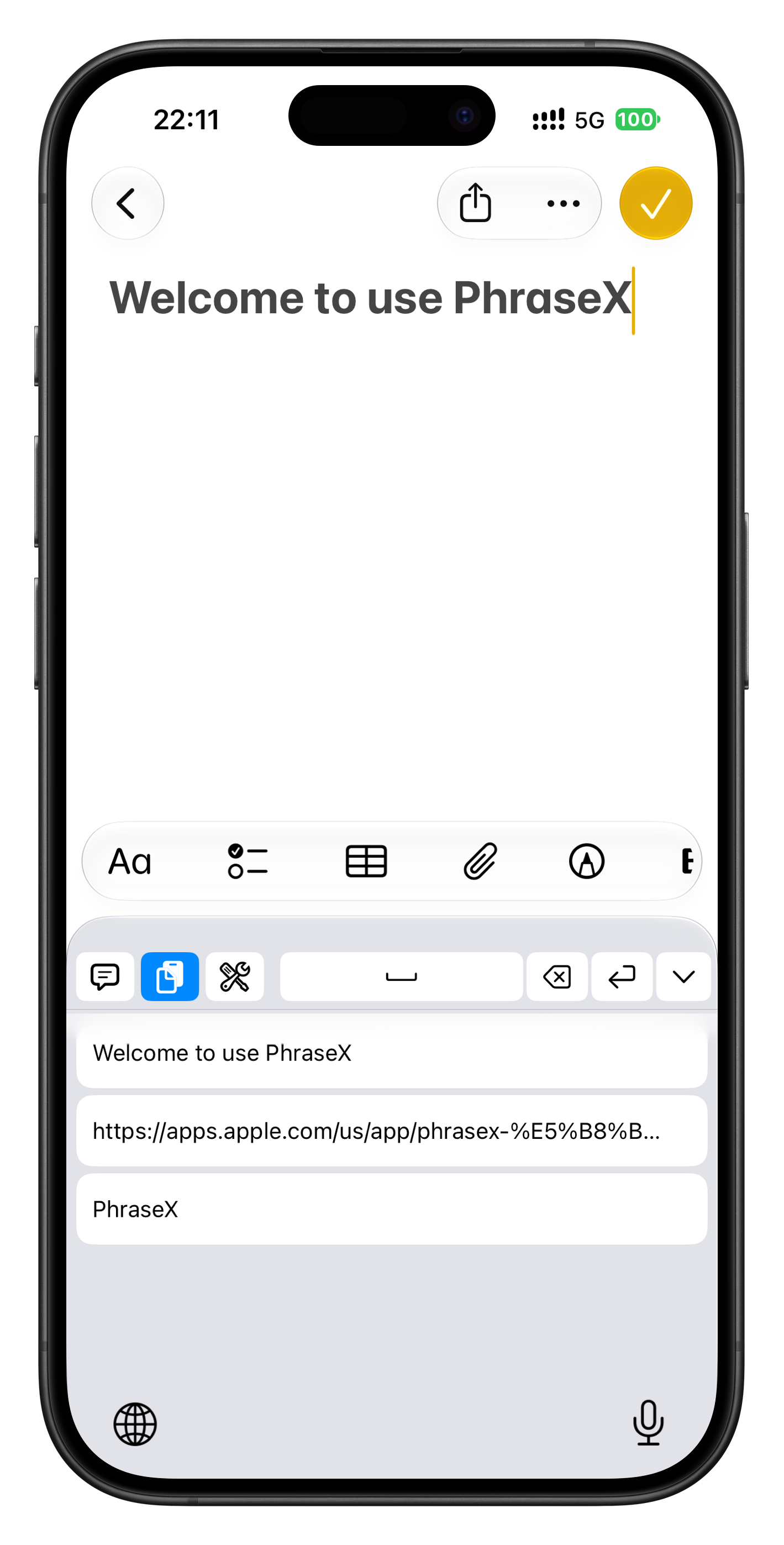
⌁Clipboard history
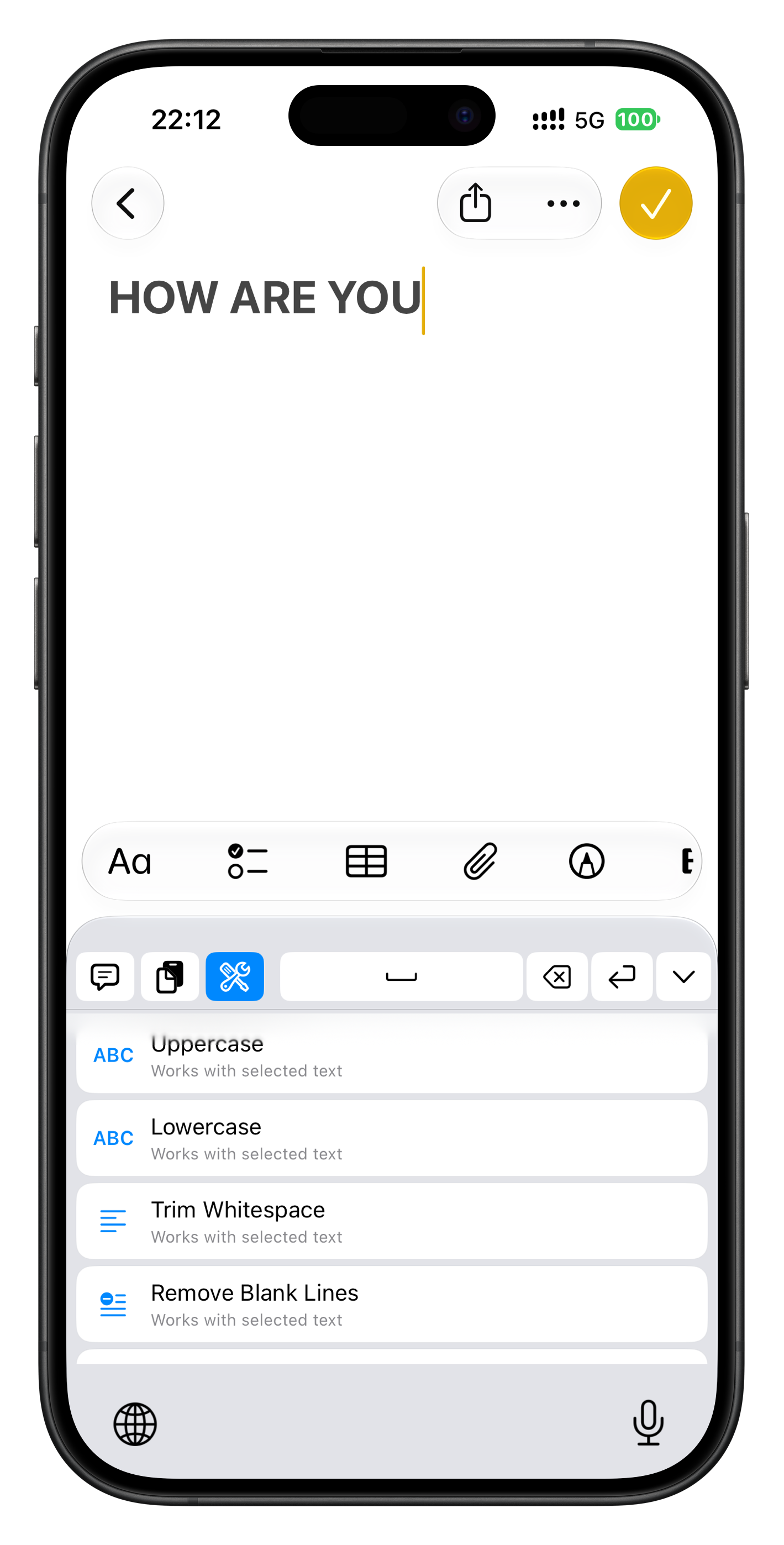
{ }Text scripts
One keyboard for the text you use every day.↓
Make everyday typing easier
Keep everyday text at your fingertips.
Organize your content in the main app, then bring it into other apps with the PhraseX custom keyboard.
01 / PHRASES
Your favorite phrases. Ready to insert.
Give each phrase a title and organize it into categories with their own icons and colors. Pin favorites, reorder entries, or create several at once, one per line. Choose a category on the keyboard and tap a phrase to insert it.
Categories
Pin & reorder
Batch creation
02 / CLIPBOARD
Copied it earlier? Find it again.
When you open the clipboard page in the main app or switch the keyboard to clipboard mode, PhraseX reads and saves the text currently on the system clipboard. Preview, edit, delete, or insert saved entries again.
Capture current clipboard
Edit history
Insert again
03 / SCRIPTS
Let scripts handle the repetitive work.
Pick a built-in script or write your own JavaScript. Run scripts when you need them to insert dates, change the case of selected text, remove extra whitespace, or format JSON. Your own network scripts can also make requests to services you specify.
Built-in library
Custom JavaScript
Work with selected text
Get started in three steps
Set it up once. Use it every day.
01
+
Save your phrases
Save and categorize your go-to text in the main app. You can organize clipboard history and scripts there, too.
02
⌨
Enable the keyboard
Enable the PhraseX custom keyboard in iOS Settings, then switch to it whenever you need it.
03
↗
Tap to use
In another app’s text field, tap a phrase, clipboard entry, or script to insert or process text.
Use PhraseX to access your saved content and tools. For everyday typing, keep using your usual keyboard.
Your content, your control
Stay organized. Stay in control.
Your data stays on your device by default. Export or import a full backup whenever you need to move it.
With Pro, you can turn on syncing for categories, phrases, clipboard history, and scripts. Your data is stored in your own private Apple iCloud database.
◇
Main app lock
With Pro, protect access to the main app using Face ID, Touch ID, or your device passcode.
⇄
Manual backups
Both Free and Pro support full backup export and import, so you can keep a copy or move your data yourself.
Find your fit
Start free. Upgrade when you need more.
Free covers everyday quick input. Choose Pro for more saved content, the full script library, iCloud sync, and an app lock.
Features
Free
Pro Room for more
Categories
3
Unlimited
Phrases per category
5
Unlimited
Clipboard history
10
50
Custom scripts
3
Unlimited
Built-in scripts
3 free scripts
All
iCloud sync
—
Included
Main app lock
—
Included
Backup import & export
Included
Included
Pro is available in the app as a monthly subscription, an annual subscription, or a lifetime purchase. See the App Store purchase screen for current pricing.
Does PhraseX automatically save everything I copy in the background?
No. PhraseX only reads and saves the text currently on the system clipboard when you open the clipboard page in the main app or switch the PhraseX keyboard to clipboard mode.
Can I use PhraseX as my regular typing keyboard?
The PhraseX custom keyboard is designed to access phrases, clipboard history, and scripts. Use your other keyboards for regular typing.
What can scripts do?
Scripts can insert content such as dates or process text you’ve selected in a text field. Run a built-in script or write your own JavaScript. Custom network scripts can make requests to services you specify.
How do I move my data to a new device?
Everyone can export and import a full backup manually. Pro users can also choose to turn on iCloud sync.
How can I purchase Pro?
Choose a monthly subscription, an annual subscription, or a lifetime purchase in the app. Check the App Store purchase screen for pricing in your region.